Kirari / Version 1.12.1

Meet
Kirari.

The companion that lives at the top of your screen. Ask it anything. It looks things up, knows your day, and acts when you say yes.

Windows 10 and 11. 107 MB. Free.

Kirari / Live

This is Kirari itself.

Kirari at the top of the screen, showing a request from Claude Code to run a command, with Deny and Allow buttons

This is Kirari itself, running on this page. Press Allow. Hold it and slide it along the top. Drop a file on it. Ask it something.

Kirari / The film

Kirari, in
40 seconds.

Amber / when it needs you

When it
needs you.

Kirari turns amber, and waits. Nothing happens until you answer.

01

It asks you first

Switch it on, and when Claude Code wants to run a command or change a file, the request comes to the top of your screen in plain words. Allow or deny, without leaving your work. Kirari never answers for you. Until you switch it on, Kirari only watches: no agent ever waits for it.

A request to run the command git push origin main, with Deny and Allow
02

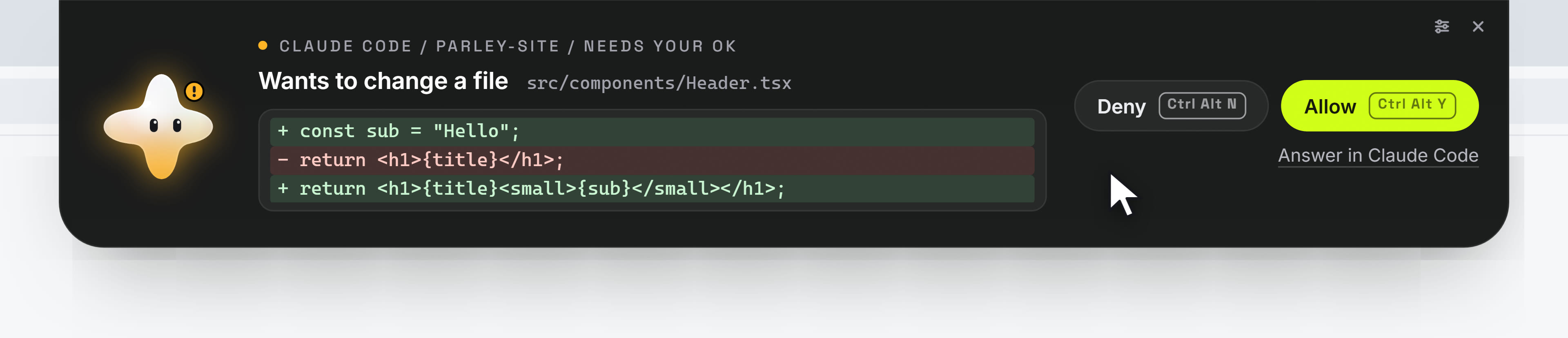
You see the change before you say yes

A file change is shown line by line: what goes out, what comes in. A long one opens down the screen in a size made for reading.

A file change shown line by line, removed lines in red and added lines in green
03

It remembers, and it reminds you

Say "remember that" and Kirari keeps it for later answers. Ask to be reminded and it comes out at the time you named. What it keeps is listed in its settings, where you can delete it.

Kirari glowing amber beside a reminder to call the bank, with the buttons In 10 minutes and Done
04

It acts, when you say yes

Turn it on, and Kirari can write a file, run a command or open something on your computer, or use a website for you in a browser of its own: a separate, empty one that is signed in nowhere and never downloads anything. Each time, a card shows exactly what it is about to do. Nothing happens until you press the button.

Kirari asking to write a new file, showing its lines, with the buttons Deny and Write it
05

It uses your apps

Connect an app that offers its tools over MCP, by its address, and Kirari can use those tools for you. You see each use before it happens. A tool that only looks can be allowed for good. Anything else asks every time. Apps that need a sign-in in the browser are not supported yet.

Kirari asking to use the app Notes to search notes, with the buttons Deny and Allow

Aqua / while it works

While
it works.

Kirari turns aqua while it is busy with what you asked.

06

Ask from anywhere

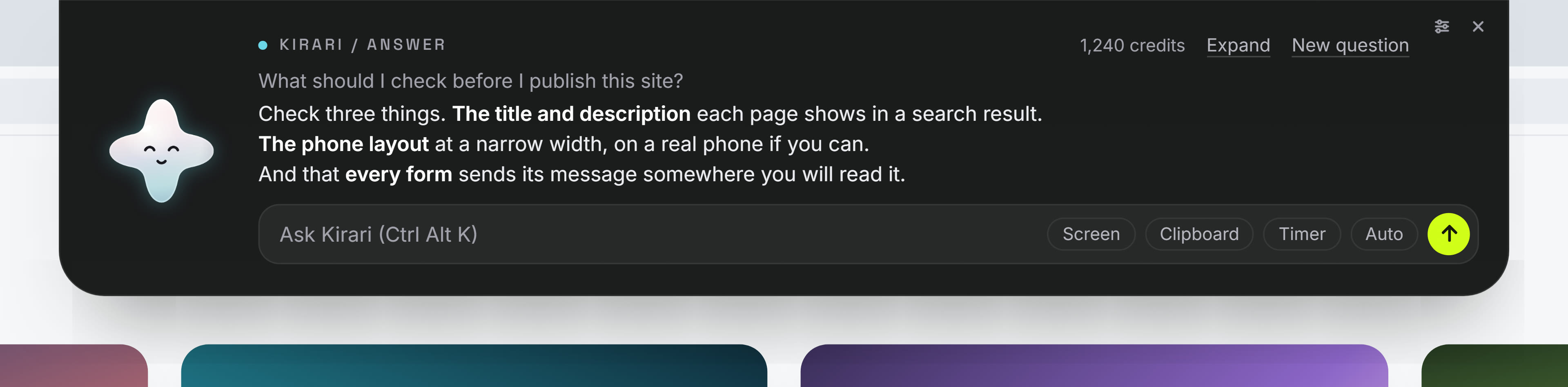
Press Ctrl Alt K and type. Kirari answers through Parley, with your Parley account. It can look at your screen, but only when you say yes.

Kirari answering a question in three lines, with a box to ask the next one
07

It looks things up

When a question needs something current, Kirari searches the web, reads the page, and shows where the answer came from. One click opens the source. Ask about the weather anywhere and it gives the forecast.

Kirari answering that it is 21 degrees and sunny in Lisbon, with the source of the answer under it
08

It reads the answer to you

Switch it on, and Kirari reads its answers aloud as they arrive, sentence by sentence. It is off until you switch it on, and one press stops it.

Kirari reading an answer aloud, with a button to stop
09

It knows your day

Connect your calendar and your inbox, and choose the folders it may look in. Then ask what is on today, whether the invoice came, or where that file went. Kirari reads your mail, and with a switch of its own it writes an email or an answer for you, signed with your name: you see the whole message first, and it goes only when you press Send.

From the film: a calendar with three meetings, an inbox with three messages, and the folders that were chosen
10

Drop a file on it

Carry a file to the top of the screen. Kirari lifts its arms to catch it, and reads it only when you ask about it.

Kirari with its arms up and the words Drop it here
11

It finishes the job

Give Kirari a job of several parts and it works through all of them, one after another. The island shows the part it is on and what it is doing, and Stop is always there. A job uses credits like any question: when it has used what one job may use, Kirari stops and asks you whether to carry on. Whatever needs your yes still waits for your yes. For a website, an app or a game, Kirari opens Parley with your request ready in the box.

Kirari on part 1 of 3 of a job: it is reading the plan, and looking up the prices comes next

Mint / when it is done

When it
is done.

Kirari turns mint, says so in one line, and gets out of your way.

12

It works while you are away

Give it a routine: a time, and what to do. Every morning at 8:30 it can have your day ready for you. A routine runs with what you switched on. The moment a step needs your yes, like an email to send, it stops right there and waits for you. Nothing that needs your yes is ever done without it. Switch it on, and Parley runs your routines while your computer is off: what needs no computer is done, and the rest waits for you. A job you started goes on there too when your computer goes off.

Kirari showing a morning briefing it prepared, with the buttons Later and Read it
13

It tells you when it is ready

When a picture or a video you made on Parley is ready, Kirari comes out, glows mint, and says so.

Kirari smiling beside the words Your video is ready
14

It moves out of your way

Hold Kirari and slide it along the top edge. It stays where you leave it. While it is tucked away, a click on the top edge still reaches what is under it.

Kirari, small, slid to the right end of the top edge

Kirari / Your say

Nothing is on
until you allow it.

What you may turn on

  • See what your coding agents are doingOff
  • Answer their requests on the islandOff
  • Ask Kirari, with your Parley accountOff
  • Look things up on the webOff
  • Remember what you ask it toOff
  • Set remindersOff
  • Look at your screen when you askAsk me each time
  • Look in folders you chooseOff
  • Read your calendarOff
  • Read your emailOff
  • Write and send emailOff, then you press Send
  • Use the tools of apps you connectYour click each time
  • Write a file, run a command, open somethingOff, then your click each time
  • Use a website in its own browserOff, then your click each time
  • Do something by itself at a time you setIt waits for your yes
  • Keep working while this computer is offOff
  • Read its answers aloudOff
  • Start with the computerOff

This is how Kirari starts. Each use is written down for you to see, and you can take any of it back.

What Kirari never does

  • It never uses the microphone or the camera.
  • It never watches your screen in the background.
  • It never looks in a folder, a calendar or an inbox that you did not connect yourself.
  • It never writes a file, runs a command or opens anything without your click, each time.
  • It never sends an email without your press on Send, and it never deletes or marks your mail.
  • Its own browser never downloads a file, never types a password or a card number, and cannot reach your computer or your home network.
  • It never goes on by itself past a step that needs your yes: it stops there and waits for you.
  • It never lets one job use more credits than one job may use without asking you first.
  • It never answers a request from your coding agent for you.
  • This page uses no cookies and loads nothing from any other site.

Kirari / Get it

Free. Version 1.12.1.

Asking Kirari a question uses your Parley account.

Windows

Download

107 MB. Windows 10 and 11.

The first time you open it

  1. Open the file you downloaded.
  2. Windows may show a blue box that says "Windows protected your PC". Choose More info, then Run anyway.
  3. Kirari installs for you only, without asking for an administrator.

Windows shows that box for any program whose maker has not bought a certificate from Microsoft. It says nothing about what the program does. You can check the file yourself, below.

Linux

Download AppImage

121 MB. Runs on most desktops.

Download .deb

96 MB. For Debian and Ubuntu.

The first time you open it

  1. AppImage: allow it to run, then open it.chmod +x Kirari-1.12.1-x86_64.AppImage
  2. .deb: install it.sudo apt install ./Kirari-1.12.1-amd64.deb

Mac

Not yet.

The Mac version is being made. It will be here when it is ready and tried on a real Mac.

Or install it from the command line

No installer to click through, and usually no warning box. It installs for you only, without an administrator.

Windows, with Scoop

scoop install https://kirari.parley.live/scoop/kirari.json

To get new versions with scoop update kirari, add the bucket once instead:

scoop bucket add kirari https://kirari.parley.live/scoop/kirari-bucket.gitscoop install kirari

Linux

curl -fsSL https://kirari.parley.live/install.sh | sh

It downloads Kirari, checks the file's fingerprint, and unpacks it into your home folder. Then type kirari.

Already have Kirari? Update it

Kirari tells you when a new version is out. Your settings and your sign-in stay as they are.

Windows, installed with Scoop

Press Update now when Kirari offers it: it fetches the new version, checks it, closes, and opens again by itself. By hand, close Kirari first (its icon near the clock, then Quit Kirari), because Scoop does not update a program that is running. Then:

scoop update kirari

Windows, installed with the installer

Download the installer above and open it. It closes the Kirari that is running, puts the new one in its place and opens it.

Linux, installed with the one line

Run the same line again. It replaces the old version. Then close Kirari and open it again.

curl -fsSL https://kirari.parley.live/install.sh | sh

Linux, AppImage or .deb

AppImage: download the new file above and use it in place of the old one. The .deb: download it and install it over the old one.

sudo apt install ./Kirari-1.12.1-amd64.deb
Check your download

Each file has a fingerprint. If the fingerprint of the file on your computer is the same as the one here, the file is exactly the one we made.

Kirari-Setup-1.12.1.exeWindows installer, 107 MB4295212db46f9506e1b4710231a848bed0b76a38c535b4bedc2c73c197ec5f6e
Kirari-1.12.1-x86_64.AppImageLinux AppImage, 121 MB103a67507d28eea888ab8d5b60c10b5f961d03736ccd13d1a28548bc97347e5e
Kirari-1.12.1-amd64.debLinux .deb, 96 MB4270e2f8109d9783e5a142b79d89553deeb40bce742ee3ffb8ea25bbd8028fa4
Kirari-1.12.1-win-x64.7zWindows, for the command-line install, 105 MB52535edece5cf1d4ac94faffa4f12978dbf896885db070cf66ee1a6de083fa61

On Windows

Get-FileHash .\Kirari-Setup-1.12.1.exe

On Linux

sha256sum Kirari-1.12.1-x86_64.AppImage